TerrainForge Wiki
Overview · English · Español · Français · Deutsch · Русский · 中文 · 繁體中文 · 日本語 · 한국어 · Polski · Português · Türkçe · Українська · Italiano · Project website
What's new in TerrainForge 0.3.8 — Hotfix for 0.3.7
- Rod registration: avoids repeated duplicate network-prefab registration and cleans invalid ObjectDB entries. The 0.3.7 logs showed these failures, but successful tool-registration messages mean in-game behavior still needs confirmation.
- Tool state: terrain editing and its HUD stop when the required tool is unequipped, including with free camera active.
- Before publishing: confirm in Valheim that the rod is handed out and terrain editing works without repeated registration warnings.
Included features from 0.3.6
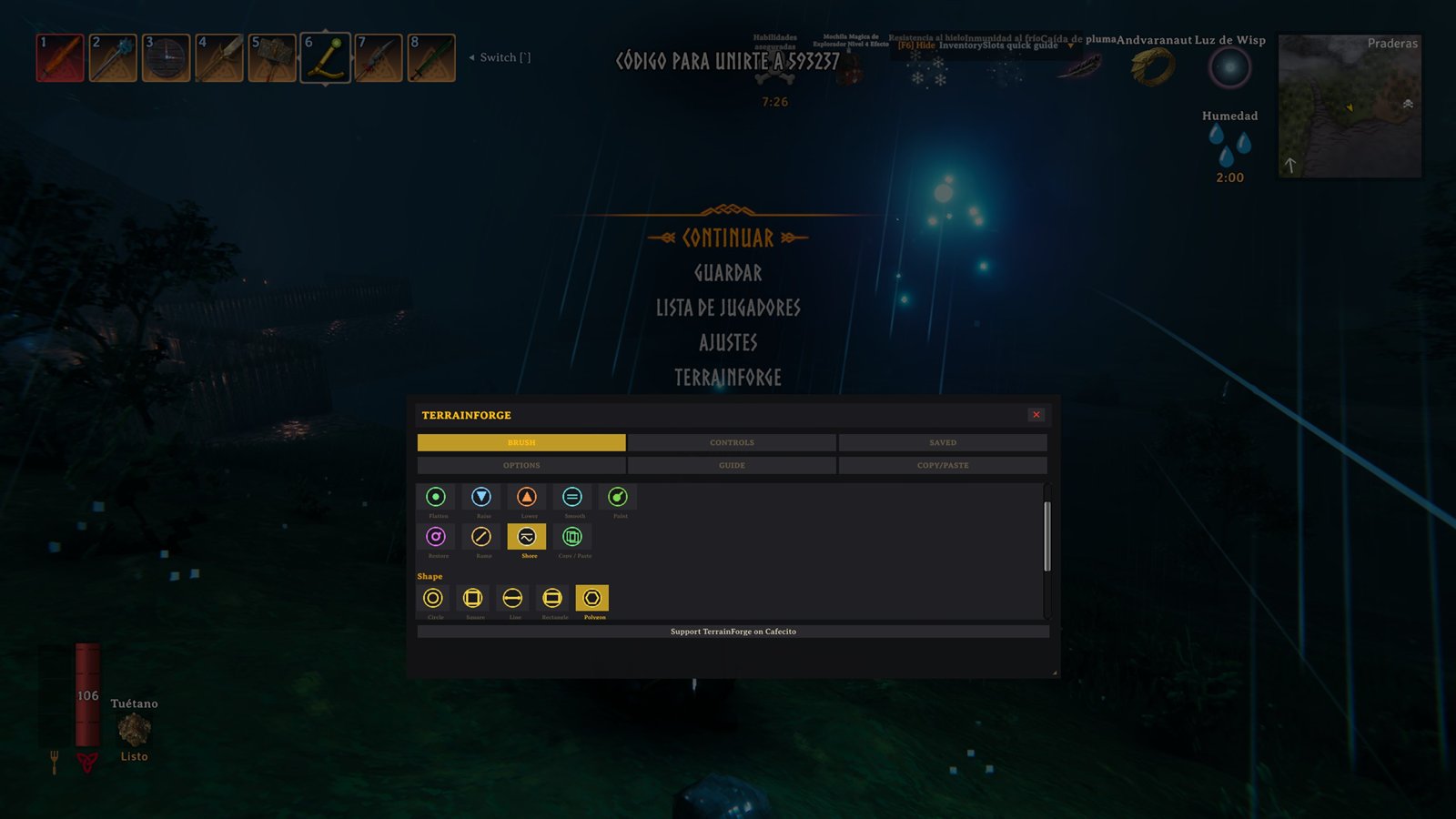
- F5 menu: reorganized into two tab rows, adapts to screen size, and shows controls for the selected operation.
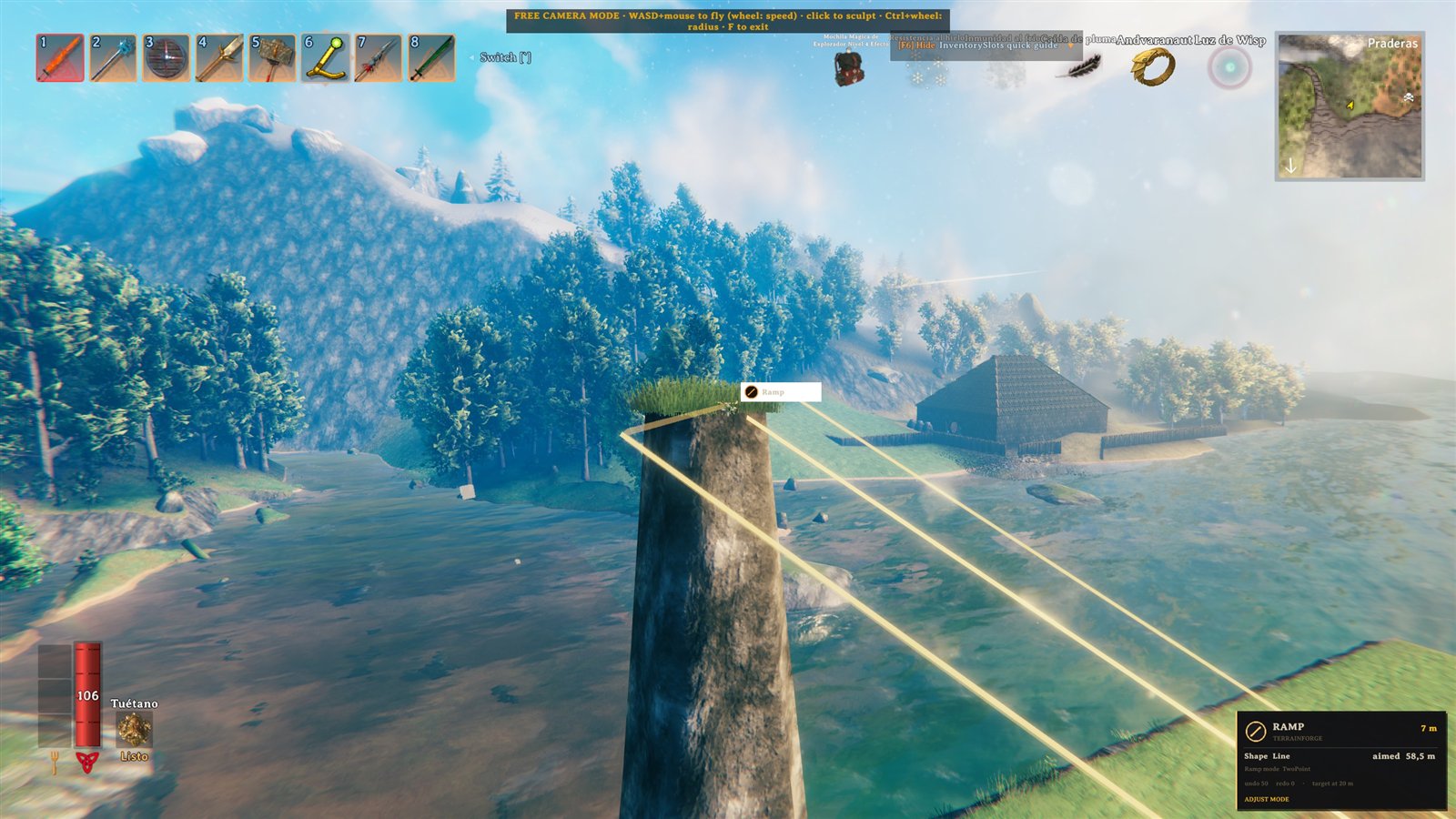
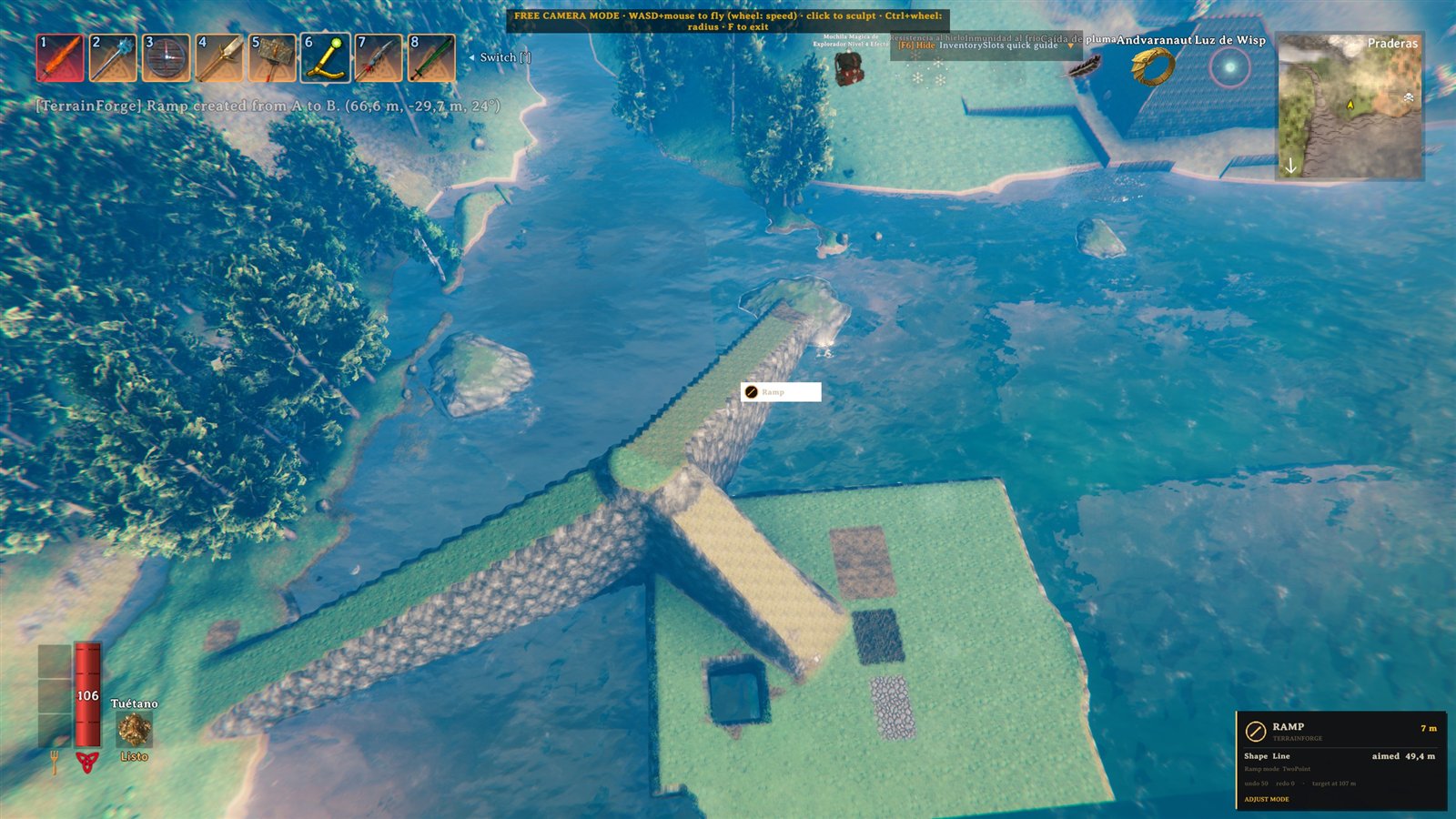
- Ramp: the dedicated panel exposes Two-Point, Fixed-Angle, and Connected Path modes with width, softness, and angle controls.
- Copy/Paste: a dedicated Q-wheel mode lets you select terrain with Rectangle, Line, Polygon, Circle, or Square, then preview and place a stamp. The HUD shows the next selection step.
- Paint and camera: Snow is available as Paint > DeepSnow, and the free camera stays above terrain while descending.
- Dependencies: TerrainForge registers its own rod; Jotunn is no longer required.
Roadmap for 0.4.0
- Circular ramps are being explored as a level ring/terrace or a connected spiral that gains or loses height around a center.
- Other planned tools include a blueprint placement ghost with grid snapping, improved stamp contour previews, and a live distance/area/slope measurement HUD. Details may change after prototyping.
In-game screenshots
The cover below is the 0.3.8 update artwork. Screenshots show the F5 tool menu, ramp preview, a completed ramp, and a Restore selection.
| TerrainForge 0.3.8 | F5 tool menu |
|---|---|
 |
 |
| Ramp preview | Completed ramp |
|---|---|
 |
 |
| Restore selection |
|---|
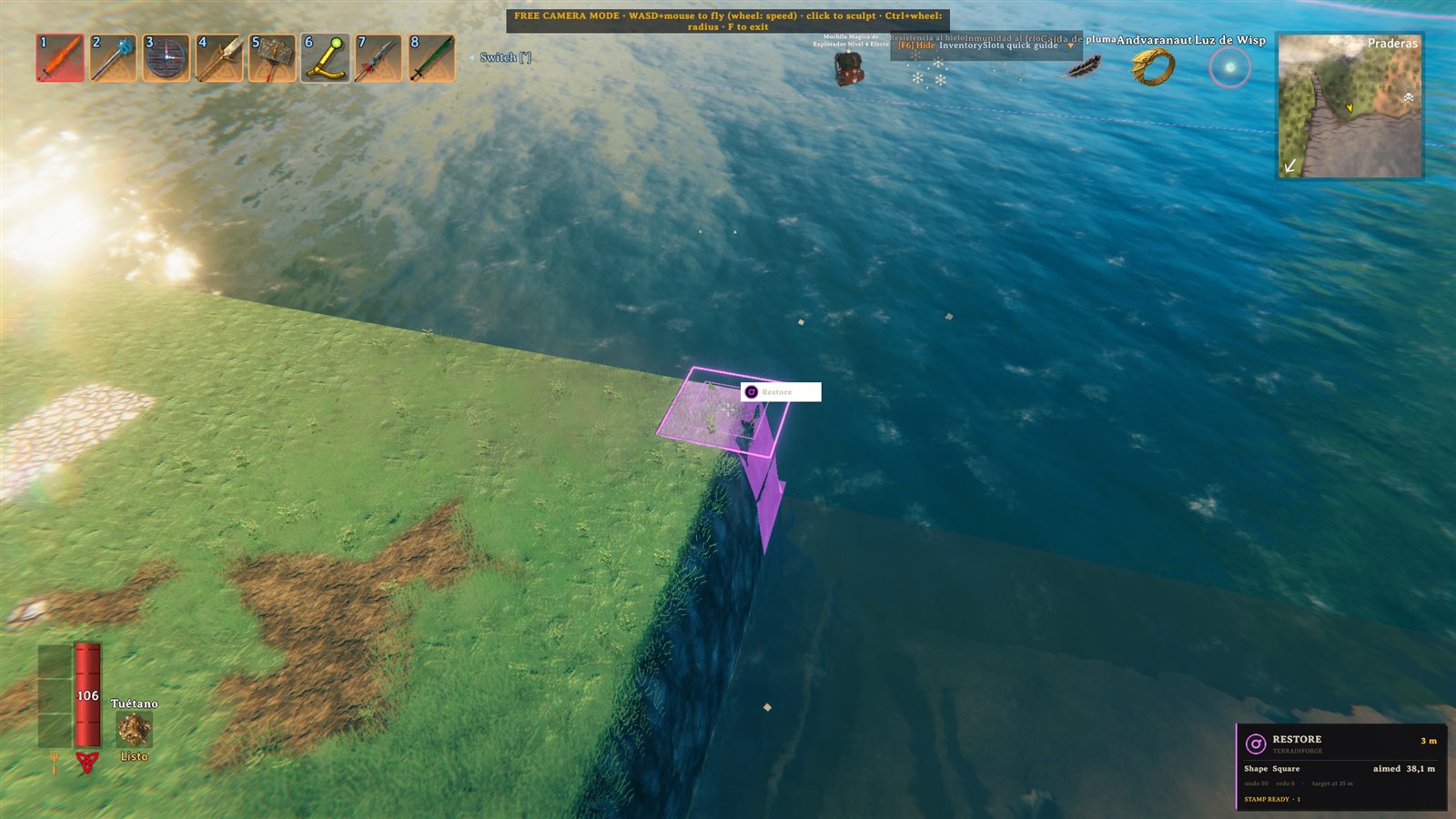 |
Table of Contents
- Installation
- Quick Start
- Controls
- Operations
- Shapes
- Falloff Modes
- Stamps (Copy/Paste)
- Snapshots (Backups)
- Profiles
- Languages
- Multiplayer
- Settings
- Troubleshooting
📥 Installation
Requirements
- BepInEx 5 (x64, Mono) on client and server. Thunderstore users already have it. TerrainForge registers its own tool; Jotunn is not required.
Steps
- Download
TerrainForge-<version>.zipfrom Thunderstore or GitHub Releases. - Extract and place
TerrainForge.dllat: - Client:...\BepInEx\plugins\TerrainForge\TerrainForge.dll- Server:<server>\BepInEx\plugins\TerrainForge\TerrainForge.dll - Restart the game / server.
⚠️ Must be installed on client AND server for edits greater than ±8 m and correct replication.
🚀 Quick Start
- Join a world. The TerrainForge Rod (a Hammer clone) is given and equipped automatically.
- Press
F5to open the menu (or click the TerrainForge button in theESCpause menu). - Equip the rod if it is not equipped.
- Aim at the terrain and hold right-click (
Mouse1) to sculpt. - Use
,to cycle operations,.for shapes,/for paints. - Hold
Q→ radial menu, release to confirm. Ctrl+Z/Ctrl+Yto undo/redo.
⌨️ Controls
| Action | Default key | Description |
|---|---|---|
| Apply brush | Hold Mouse1 (Right Click) |
Sculpts terrain under the crosshair |
| Radius + | = or Ctrl+Wheel |
Increases brush radius |
| Radius − | - or Ctrl+Wheel |
Decreases brush radius |
| Cycle operation | , |
Cycles the 9 operations |
| Cycle shape | . |
Circle → Square → Line → Rect → Poly |
| Cycle paint | / |
Cycles the 6 paint types |
| Level to feet | Hold Left Shift |
Flatten uses the player height |
| Undo | Ctrl+Z |
Undoes the last stroke |
| Redo | Ctrl+Y |
Redoes the undone stroke |
| Eyedropper | G |
Fixes the Flatten height at the crosshair (again = release) |
| Ramp mode | H |
Cycles: Two-Point → Fixed-Angle → Connected Path (or pick in the F5 Ramp panel) |
| Fixed ramp angle | Hold Alt + radius/wheel |
Adjusts the angle in fixed mode |
| Radial menu | Hold Q |
Pick an operation with the mouse, release confirms |
| Adjust mode | V |
Wheel = radius, freezes zoom/bar/map |
| Fine adjustment (0.1 m) | Hold Shift + wheel/radius |
Precise radius adjustment |
| Copy Stamp | Ctrl+Shift+C |
Copies the selected shape in Copy/Paste mode |
| Paste Stamp | Ctrl+Shift+V |
Starts or confirms the ghost preview |
| Get Rod | F8 |
Grants the TerrainForge Rod |
| Open menu | F5 |
Opens the six-tab panel and freezes local camera/player controls |
Extra keys (no default, assign them in KEYS): - Direct operation keys: Flatten, Raise, Lower, Smooth, Paint, Restore, Ramp, Shore. The legacy Snow key selects Paint + DeepSnow; choose Copy/Paste from the Q wheel. - Next / previous profile - Next / previous stamp (history)
"Quick actions" section (KEYS tab): buttons for functions with no mandatory shortcut — Undo, Redo, Fix height, Copy/Paste stamp, Previous stamp, Clear marks, the heatmaps and the Material diagnostic (dumps the shader + texture slots to the log).
🔄 Operations
| Operation | Description |
|---|---|
| Flatten | Levels to the aimed height (Shift = at your feet). Fixed height via the Eyedropper (G) or the SETTINGS textbox. |
| Raise | Raises terrain by RaiseDelta per application. The falloff mode shapes it. |
| Lower | Lowers terrain by RaiseDelta per application. The falloff mode shapes it. |
| Smooth | Real blur: averages each vertex with its 8 neighbours. Hold for progressive. Modes: Full (both), Ridges only (lowers), Dips only (raises). Line shape = smooth a path. |
| Ramp | 3 modes (cycle H):• Two-Point: mark A and B → a straight slope joins the heights. • Fixed-Angle: B = direction/length; height = SlopeAngle (up/down according to the crosshair). Adjust with Alt+radius.• Connected Path: mark 3+ points A→B→C… to build one continuous smooth ramp. Width = brush radius. Softness = blend on the side edges only. Preview: filled corridor + height rings at A/B. |
| Shore | Flattens toward the water level + ShoreOffset margin (beaches). Softness like Flatten. |
| Paint | Types: Dirt, Cultivated, Paved, ClearVegetation, DeepSnow, Reset. Adjustable strength. |
| Restore | Returns the terrain to its original state (height + paint). |
| Copy/Paste | Dedicated Q wheel mode for selecting terrain to copy and placing stamps. |
📐 Shapes
Cycle with the . key. All support undo.
| Shape | Marking | Use case |
|---|---|---|
| Circle | Single click (brush centre) | General sculpting |
| Square | Single click (centre) | Platforms, foundations |
| Line | 2 clicks (A → B) | Paths, walls, trails. Half-width = radius. |
| Rectangle | 2 clicks (opposite corners) | Foundations, farms, platforms. Soft edges. |
| Polygon | Click per vertex, double-click closes (3+ vertices) | Complex shapes, custom areas |
- Non-circular shapes show only the marked outline (no circular rings).
- Softness affects the edge blend on all shapes.
⚙️ Falloff Modes (Raise/Lower)
Config in SETTINGS → "Raise/Lower falloff":
| Mode | Behavior |
|---|---|
| Pointy | Central peak. Controlled by the "Falloff power" slider (1–5). |
| Flat | Uniform disc — same weight across the whole radius. |
| Smooth | Cosine bell — smooth transition, no hard edge. |
| Linear | Straight taper from centre to edge. |
🧱 Stamps (Copy/Paste)
A powerful feature for replicating terrain structures.
Select the area to copy
Choose Copy/Paste in the Q wheel. Rectangle marks corners A and B with Apply; Line marks two endpoints; Polygon adds vertices and copies on a double-press after 3+ points; Circle/Square copy the aimed brush footprint. The HUD shows the next step. Ctrl+Shift+C follows the same selection flow.
Workflow
- Mark the area with the selected shape as described above.
- Copy:
Ctrl+Shift+Cor Apply in Copy/Paste mode → "Stamp copied: X tiles" (RAM clipboard). - Paste preview:
Ctrl+Shift+V→ ghost wireframe at the crosshair. -Q/E= rotate ±15° -Alt+Wheel = continuous rotation -Shift+Wheel = scale 0.25×–4× -Esc= cancel - Confirm: Use the paste shortcut again to confirm the preview.
Selection stamps write only inside the copied region; terrain outside it is left untouched.
History
- Up to 10 stamps in RAM (most recent first).
Next stamp/Previous stampkeys (rebindable) cycle them.- Flash: "Stamp history: Copy: 3 tiles [2/5]"
Persistence
- SETTINGS → STAMPS:
- Save the current stamp to disk (
.stampinBepInEx/config/TerrainForge/stamps/, max 12). - Load a stamp into the clipboard.
- List/delete saved stamps.
Stamp tool
- SETTINGS → "Stamp tool" (4 options):
Same as brush(default) — uses the same tool as the brushAny— no requirementPickaxe— requires a pickaxe equippedTerrainForge Rod— requires the mod's rod- The HUD shows
STAMP READY [2/5]when the tool is equipped + stamps in the clipboard. - Without the tool:
Stamp: tool not equipped, copy/paste blocked.
💾 Snapshots (Backups)
Full terrain backup/restore.
Save
- SETTINGS → SNAPSHOTS.
- Name (empty = auto date/time).
- Save → edited tiles to
BepInEx/config/TerrainForge/snapshots/<name>.dat(max 12).
Load
- Select a snapshot.
- Load → restores tiles with ownership, 1 undo step.
- Unloaded tiles warn cleanly — import close to the original location.
Features
- Versioned binary format (
.dat). - Restores height + smooth + paint + ownership.
- Import is undoable (
Ctrl+Zreverts the import). - Unloaded tiles warn cleanly.
💾 Profiles
Save/load complete brush configurations.
- SETTINGS → PROFILES.
- Name + Save → radius, softness, op, shape, paint, ramp mode, angle, smooth mode, raise delta, paint strength, falloff, shore offset.
- Load → applies instantly.
- Max 12 profiles (culture-invariant format in
Presets > Slots). - Keybind:
Next Profile(assign in KEYS) to cycle.
🌐 Languages
15 options: Auto, English, Español, Français, Deutsch, Русский, 中文, 繁體中文, 日本語, 한국어, Polski, Português, Türkçe, Українська, Italiano — default Auto.
Auto-Detect
- The default
Autodetects the game language via reflection:Localization.instance.GetSelectedLanguage(). - Maps the Valheim language → internal index.
- If a language has no complete translation → falls back to English.
- Configurable in SETTINGS → "Language" (cycles the 15 options).
- Key labels are rebuilt when the menu opens.
Translation status
- Complete: English, Español
- English fallback: Français, Deutsch, Русский, 中文, 繁體中文, 日本語, 한국어, Polski, Português, Türkçe, Українська, Italiano
- Community translations welcome via PR.
This documentation
Translated wiki pages: English · Español · Français · Deutsch · Русский · 中文 · 繁體中文 · 日本語 · 한국어 · Polski · Português · Türkçe · Українська · Italiano.
🌍 Multiplayer
Requirements
- Mod on client AND server for edits greater than ±8 m and correct replication.
UnlockDeltaLimiton the server too, otherwise the server clamps terrain.
Server Authority (Config Sync)
When the server runs the mod, its Server section wins:
- AllowTerrainEdits (default true) — master switch; if false, clients cannot apply/undo/redo.
- AdminOnlyEdits (default false) — only admins/host can edit.
- RespectWards (default true) — blocks edits inside foreign wards.
- RadiusCap / DeltaCap (0 = off) — server-enforced caps, visible in the HUD+preview.
Servers without the mod ignore the section → the client works for testing.
Desync Prevention
- Keep
MaxUpDelta/MaxDownDeltaconsistent on server + clients. - Large radii can desync clients without the mod.
⚙️ Settings
File: BepInEx/config/com.terrainforge.valheim.cfg
General
| Setting | Default | Description |
|---|---|---|
Enabled |
true |
Master switch |
PlayEffects |
true |
Dust + hit on apply |
Language |
Auto |
Auto / English / Español / Français / Deutsch / Русский / 中文 / 繁體中文 / 日本語 / 한국어 / Polski / Português / Türkçe / Українська / Italiano |
ToolTint |
true |
Tints the TerrainForge Rod (a Hammer clone) so it is easy to tell apart from the vanilla Hammer |
ToolTintColor |
#4FC3F7 |
Rod hex color (model + icon). E.g. #FFC400 gold, #8BC34A green |
Brush
| Setting | Default | Range | Description |
|---|---|---|---|
Radius |
8 | 1–100 | Brush radius (m) |
RadiusMin |
2 | — | Min radius while adjusting |
RadiusMax |
60 | — | Max radius while adjusting |
RadiusStep |
1 | — | Radius change per key/wheel |
Softness |
50 | 0–100 | Edge softness (0 = hard, 100 = very soft) |
FalloffPower |
3 | 1–5 | Falloff exponent (Pointy mode only) |
RaiseLowerMeters |
2 | 0.5–10 | Metres per Raise/Lower application |
PaintStrength |
1 | 0–1 | Paint strength |
DefaultOperation |
Flatten | — | Starting operation |
Shape |
Circle | — | Starting shape |
Paint |
Dirt | — | Starting paint |
RampMode |
TwoPoint | — | TwoPoint / FixedAngle / Path |
SlopeAngle |
30 | 5–60 | Fixed ramp angle (degrees) |
SmoothMode |
Full | — | Full / Bumps / Dips |
FalloffMode |
Pointy | — | Pointy / Flat / Smooth / Linear |
ShoreOffset |
0.5 | -2–5 | Shore margin above water (m) |
UseFixedHeight |
false | — | Use a fixed height (eyedropper state) |
FixedHeight |
30 | -10–150 | Exact Flatten height (m) |
Vanilla / integration
BlockVanillaTerrainTools: false — with the rod equipped, ignores the vanilla hoe/cultivator terrain edit. There is also a toggle in SETTINGS.
Input
All shortcuts are rebindable in the KEYS tab. Highlights:
- ApplyKey (Mouse1), RadiusUp/Down (=/-), CycleOp/Shape/Paint (,/.//)
- UndoKey (Ctrl+Z), RedoKey (Ctrl+Y), EyedropKey (G), RampModeKey (H)
- RadialKey (Q), AdjustModeKey (V), GiveToolKey (F8), RebindMenuKey (F5)
- Direct op keys (9, no default): OpFlatten/Raise/Lower/Smooth/Paint/Restore/Ramp/Shore/Snow (legacy key selects Paint + DeepSnow); Copy/Paste is selected in the radial menu.
- CycleProfileKey, CycleStampKey, CycleStampBackKey
- RequiredTool: Any / Pickaxe / TerrainForgeTool (default)
- AutoGiveTool: true (grants the rod on join)
Stamps
StampToolMode: Same as Brush / Any / Pickaxe / TerrainForgeTool (default Same as Brush)
Preview
ShowPreview: true,ShowGuides: true (reach guides, slope tint, level ring)
History
UndoDepth: 50 (0–500, 0 disables history)
Server (Authoritative via Config Sync)
AllowTerrainEdits: true (master switch)AdminOnlyEdits: false (admins only)RespectWards: true (blocks foreign wards)RadiusCap/DeltaCap: 0 (off) — server-enforced caps
Performance
TilesPerFrame: 4 (1–32 tiles/frame)
🐛 Troubleshooting
| Issue | Solution |
|---|---|
| Menu does not appear / invisible cursor | Close the game. Delete %APPDATA%\Thunderstore Mod Manager\DataFolder\Valheim\profiles\YourProfile\BepInEx\plugins\TerrainForge\ and %APPDATA%\Thunderstore Mod Manager\PackageCache\. Restart TMM, check updates. |
| Update not showing in TMM | TMM → Settings → "Refresh mod list" (Ctrl+R). Close/reopen TMM. Verify the correct profile. |
| Thunderstore version conflict | Use the same new X.Y.Z version in .csproj, Plugin.cs, and manifest.json; it must be higher than the version already published. Rebuild and package again. |
| Stamp copy/paste does nothing | HUD: STAMP READY [X/Y] = ready. If "tool not equipped", equip the tool (SETTINGS → Stamp tool). |
| Preview invisible under water | Fixed in 0.3.2 — the preview floats on the surface. Update. |
| Circles on Line/Rect/Poly | Fixed in 0.3.2 — only the marked outline is shown. Update. |
| Radial wheel does not work | Fixed in 0.3.2 (ZInput.GetMouseScrollWheel()) and 0.3.4 (the selection is no longer wiped with a centered cursor). Update. |
| Config does not save | Close the menu (F5) to auto-save. Or edit BepInEx/config/com.terrainforge.valheim.cfg directly. |
| Multiplayer desync | Mod on client+server. UnlockDeltaLimit on both. Same MaxUpDelta/MaxDownDelta. |
| Build fails | Check the ValheimDir and BepInExCoreDir paths in .csproj or via CLI. .NET SDK 8+ required. |
| Compile / package | dotnet build -c Release (DLL in build/), -p:Deploy=true (installs into the profile) or -p:Package=true (zip in build/). |
🔗 Links
- Project website: marceloanton.github.io/TerrainForge
- Thunderstore page: TerrainForge on Thunderstore
- GitHub repository: TerrainForge on GitHub
- Donations: cafecito.app/byrka
- Changelog: Changelog
TerrainForge — Terraform Valheim without limits.